
Getting started
Signing in with a password or single sign-on, choosing a workspace, and finding your way around the navigation.
Signing in
Go to the Studio sign-in page. What you see depends on how your deployment is configured:
- Single sign-on. If an identity provider is connected, the page leads with a Continue with single sign-on button. You authenticate with your organisation's provider and come back signed in.
- Password. If the local password fallback is enabled, an email and password form sits below the SSO button, under an "Or use a password" rule. When SSO is not configured at all, the password form is the only way in and the page says so.
There is no password reset on the sign-in page. If you cannot sign in, ask an administrator.
Two notices you might meet:
- "You're signed out of the helpdesk." Signing out ends your helpdesk session, but your identity provider may keep its own session, so signing back in will often not ask for a credential.
- "Your session ended because your identity provider stopped accepting it." Sign in again to continue.
Choosing a workspace
If your account belongs to exactly one workspace you land straight in it. If you belong to more than one, you are asked to pick: the product refuses to guess, because picking for you could show you the wrong customer's data.
Each row on the Choose a workspace screen is a workspace name and slug. Click one to enter it. You can switch workspace later from the sidebar's user menu, and the "Not you?" link signs you out.
First run
The first time a workspace is used, you are taken through onboarding and asked how you plan to use Auralis. Your answer sets the workspace's deployment mode, which decides which navigation items you see. The full-helpdesk mode shows everything described in this guide.
The navigation rail
The left edge of every screen is a rail. It starts collapsed to icons; the control beside the wordmark expands it to show labels, and the choice sticks.
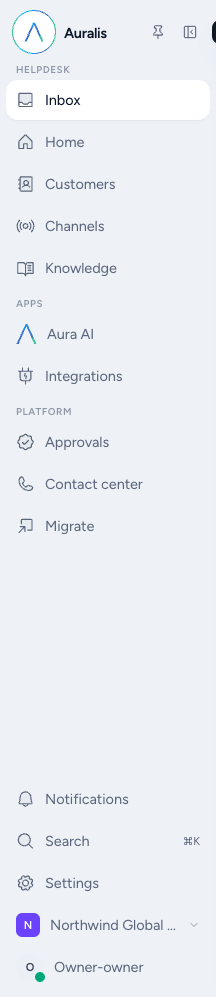
Items are grouped, top to bottom:
Helpdesk — the day job.
| Item | What it is |
|---|---|
| Inbox | The queue. The home screen, and where most of the day happens. |
| Home | The workspace overview and metrics. |
| Customers | The customer records behind your tickets. |
| Channels | Where messages come from, and what each one can do. |
| Knowledge | The help centre: articles, collections, branding and the address customers read them at. |
Apps — things that sit beside the helpdesk.
| Item | What it is |
|---|---|
| Aura AI | The AI assistant: its configuration and its own workspace. |
| Integrations | Third-party connections. |
Platform
| Item | What it is |
|---|---|
| Approvals | Pending approvals for agent tool calls, with a badge when any are waiting. |
| Contact center | Voice and phone operations: queues, agent state and the wallboard. |
What you see depends on the deployment mode
The workspace's deployment mode, chosen at onboarding, decides which of these groups appear. A workspace using Auralis only for AI on top of somebody else's helpdesk does not show the Helpdesk group. Nothing is hidden by role here — role hides controls, not navigation.
Importing from another helpdesk used to sit on this rail as Migrate. It now
lives at Settings, Migrate; the old /migrate address redirects there. The
screenshot above predates that move.
Below the groups sit Notifications, Search (⌘K), and Settings,
which opens the area described in the
settings reference.
At the very bottom are the workspace control — which switches workspace when you belong to more than one — and your account, holding your presence (online, away, offline), your live-chat and phone capacity, account settings, sign out, and links to Docs, the API reference, the changelog and support.
Where to go next
Open Inbox and read The Inbox. If your workspace is empty, connect a channel first: see Channels.