
The Inbox
The three-pane queue: the sidebar, filters, saved views, channels and the details pane.
The Inbox is the workspace home screen. It has three panes, left to right:
- The sidebar and conversation list — every way of narrowing the queue, and the queue itself.
- The thread — the selected conversation, with the composer docked at the bottom.
- Details — the facts beside the conversation: status, priority, assignee, attributes, customer.
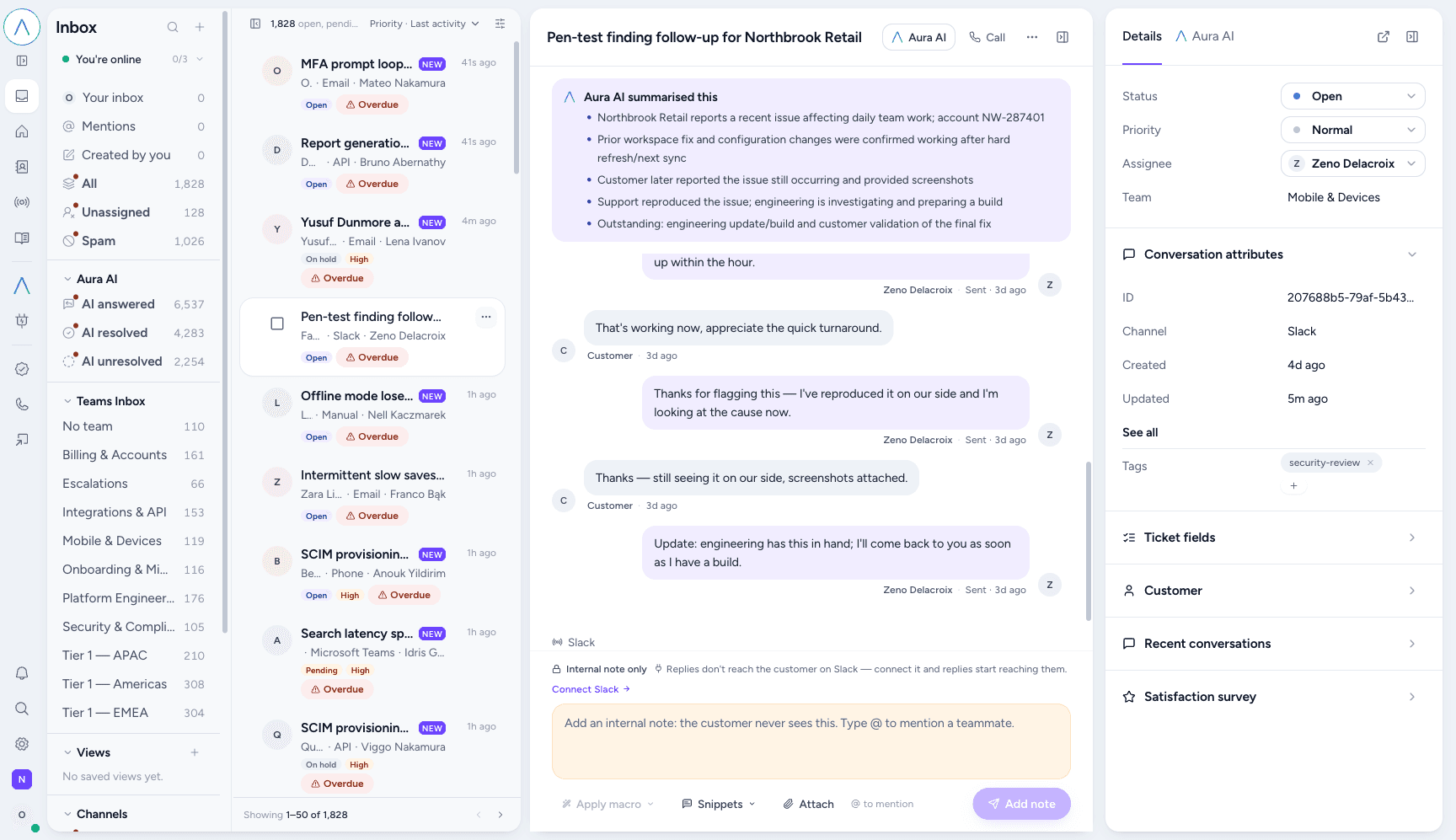
The list and details panes can each be collapsed from their own header. On a narrow window the details pane becomes an overlay drawer rather than a column, so if you cannot see it, widen the window before you go looking for a setting.
The sidebar
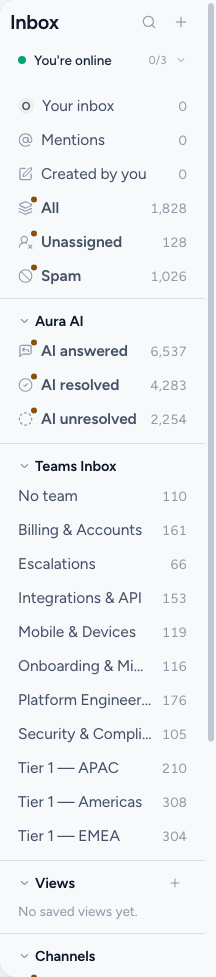
The header holds the Inbox title, a magnifier that swaps the title for a search box, and a + that opens the new-ticket form. Search matches subject and body; type and press Enter.
Below it, a presence control shows whether you are online and how much live-chat
capacity you have — 0/3 means no live chats in progress out of a limit of
three. Going offline stops work being routed to you.
The queue rows
Seven rows, each a filter over the whole workspace:
| Row | What it shows |
|---|---|
| Your inbox | Assigned to you. |
| Mentions | Conversations where somebody @-mentioned you. |
| Created by you | Tickets you opened. |
| All open | Every open, pending and on-hold conversation. |
| Closed | Closed conversations. Solved is a separate terminal status and is reached from the status filter. |
| Unassigned | No assignee yet. |
| Spam | Marked as spam. |
All open and Closed sit next to each other because they are one population split in two. Before Closed existed, a ticket became unreachable from the sidebar the moment it was closed.
Each carries a live count, and a dot marks rows with items you have not seen.
These rows are not the status axis
These rows are mostly about who a conversation belongs to rather than what state it is in. Only Closed and Spam name a status; everything else narrows by ownership. The rest of the status axis lives in the filter popover and in the count label above the list, and the default view is open, pending and on hold together — the work that is actually waiting.
Aura AI
Four rows counting what the AI agent did, so you can see its work as a queue rather than as a statistic:
- AI answered — the agent replied.
- AI resolved — the agent closed it out without a human.
- AI unresolved — the agent tried and did not get there. This is the one to work; it is the backlog the AI handed back.
- AI web chats — conversations the agent held itself on the web widget. They open solved, so they are not in All open until a human is handed the conversation, and this row is the only way to reach them from the sidebar.
Teams Inbox
One row per team, plus No team for anything unrouted, each with a count. This is how a team lead finds their own queue without building a filter. See Assignment and teams.
Views
Saved filter sets, shown as named rows. Set the filters you want, then use the + in the Views header to name and save them. A view can be private to you or shared with the workspace.
Applying a view is open to everyone — it is only a way of reading the queue.
Saving one needs editor; deleting one needs admin.
Channels
One row per source that currently has tickets, busiest first, with a count — Email, Web chat, API, Microsoft Teams, Phone, Contact form, Slack, AI handoff and so on, with +N more below the first eight. The list is built from what the queue actually contains, so a channel connected this morning appears here without any change to the product. A workspace with no traffic shows no Channels section at all.
AI handoff may appear on an older workspace. It is a source no longer written: a handed-off web chat is now a Web chat ticket with the handoff recorded as a reason on it. Existing rows keep the source they were created with, so the row is honest about what the queue holds.
The conversation list
Above the list sits a sub-header with four things: a control to hide the list
entirely, the count and scope you are looking at (1,828 open, pending, on hold), a sort control, and Filters.
Sorting defaults to Priority · Last activity: urgent first, then most
recently active within each priority band. That ordering is stable, which is
what makes paging through the queue reliable.
Filters opens a popover with:
- Priority — urgent, high, normal, low, multi-select.
- Overdue — overdue only.
- Snoozed — snoozed only.
- Assignee — anyone, mine, or unassigned.
- Customer — searchable, to pin the queue to one company or person.
A badge on the trigger counts the active filter groups, so a filter can never be on and invisible. Every filter lives in the page address, so a filtered queue is a link you can bookmark or send to a colleague.
Opening a ticket that is not in the current list
Following a link to a conversation your filters exclude shows it pinned above the list with Opened from a link, and a note that it is not in the list below. The filters are not silently changed to accommodate it.
What a row shows
The customer's avatar and name, the subject, the channel it arrived on and the
assignee. Beside them, a New badge if you have not opened it, its status,
its priority when that is high or urgent, and an Overdue flag when an SLA
target has been missed.
Priority pills are shown only for high and urgent, deliberately — a hundred rows
of normal would drown out the two that matter.
Bulk actions
Ticking a row's checkbox replaces the sub-header with a bulk toolbar carrying the number selected and three verbs: change status, change priority, and unassign.
Two things worth knowing:
- A bulk change skips tickets whose current status will not allow it rather than failing the whole call. Solving a mixed selection solves the live ones and leaves the already-merged ones alone.
- Solving in bulk has every effect that solving one at a time has, including the
CSAT request on each ticket reaching
solvedfor the first time.
Bulk update sits above single-ticket editing in permission terms. See Members and roles.
Paging
Fifty conversations per page, with a Showing 1–50 of 1,828 range and
previous/next controls in the footer.
The details pane
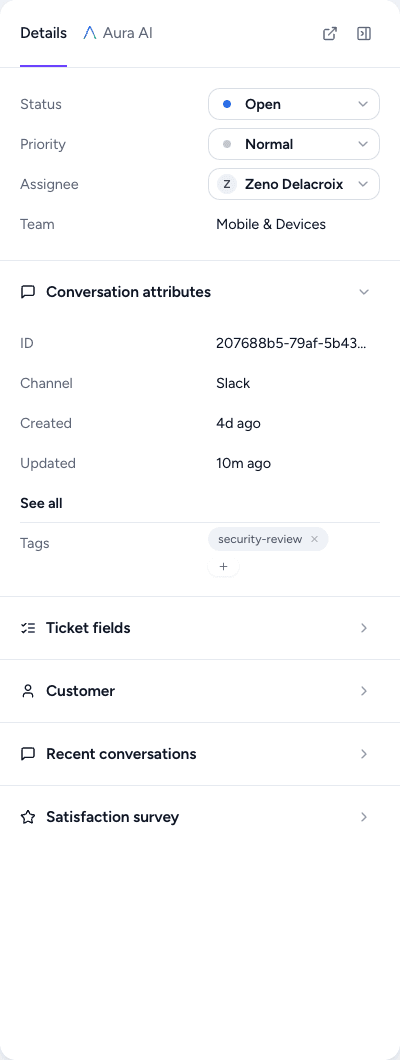
Two tabs: Details, and Aura AI for the assistant's view of the same conversation.
The Details tab opens with the four things you change most — Status, Priority, Assignee and Team — as controls rather than as text.
Below them:
- Conversation attributes — the ticket id, the channel, created and updated times, and Tags, edited inline. See all expands the rest, including the SLA due times.
- Ticket fields — your workspace's custom fields, if you have any.
- Customer — who this is, and how to reach them.
- Recent conversations — the same customer's other tickets.
- Satisfaction survey — the CSAT state for this ticket.
The pane header opens the conversation as a full page in a new tab, or collapses the pane.
The thread
The header carries the subject and, on the right, Aura AI (the assistant), Call, an overflow menu, and the control that collapses the details pane.
Where the assistant has read the conversation, an Aura AI summarised this card sits at the top of the thread — a handful of bullets covering what happened and what is outstanding. It is a reading aid, not a record: the timeline below it is the truth.
The composer is docked at the bottom and is labelled with the channel the conversation arrived on.
A channel you have not connected cannot carry a reply
If the conversation's channel is not connected, the composer says so plainly — Internal note only, with the reason and a Connect link — and offers you an internal note instead of a reply. It does not present a reply box that would silently fail to reach anybody.
This is the general rule across the product: see Channels.
Under the composer: Apply macro, Snippets, Attach, and @ to mention
a teammate.
Next
- Working a ticket — replies, notes, statuses and the full-page view.
- Statuses, priorities and filter semantics — what the states mean and how filters combine.